Keeping track of goals doesn’t belong in my regular calendar mixed in with vacations, doctor appointments and rehearsals. I wanted a place, other than my office wall, where I could see my goals at a glance. So I set up a Google Calendar for planning. This article will show you how to do that.
For me, one important aspect of my yearly planning is to set specific dates when I want to have things done. For example, in a past year I committed to releasing a new productivity form on the second Saturday of every month, and decided on a reading schedule to read 12 non-fiction books.
Setting Up A Second Google Calendar
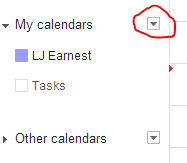
It’s really easy to set up additional calendars under Google Calendar. Simply go to your calendar screen, and click the downward-pointing triangle next to the My Calendars, and choose Create New Calendar.
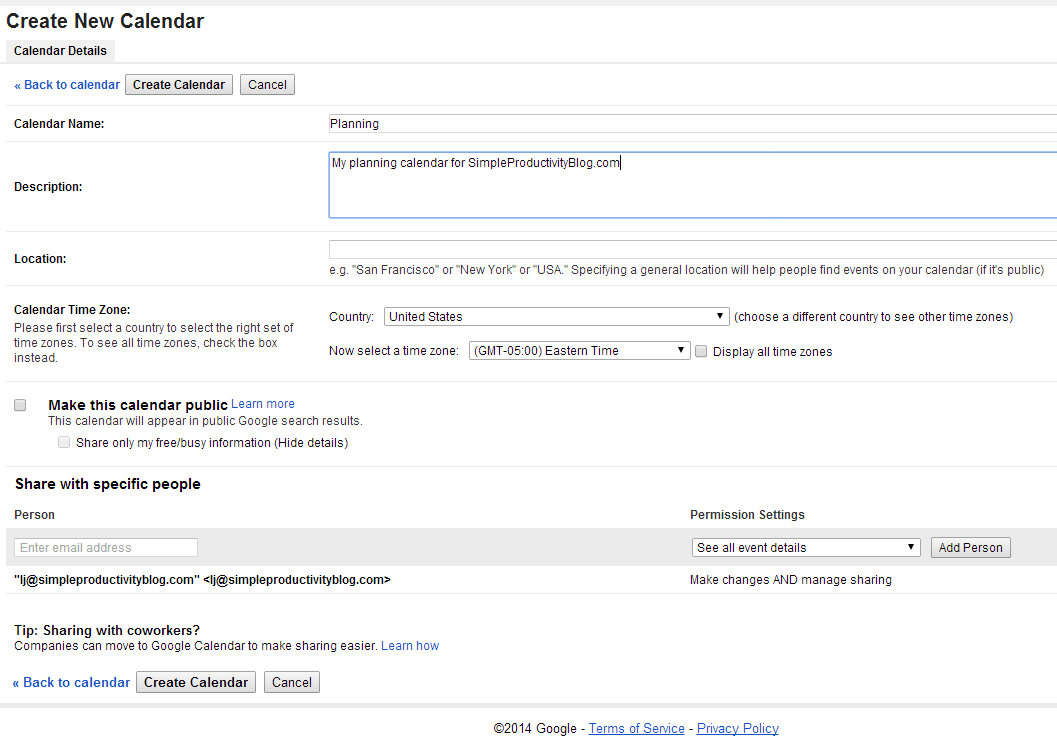
From there, you will be prompted to enter calendar details, such as name, and whether or not you want to make it public or share with anyone in particular.
Hiding/Showing The New Calendar
If you are looking at your calendar, and you want to hide your planning calendar, just click on the colored box to the left of the name of the calendar under the My Calendar list. To show it, click the box again.
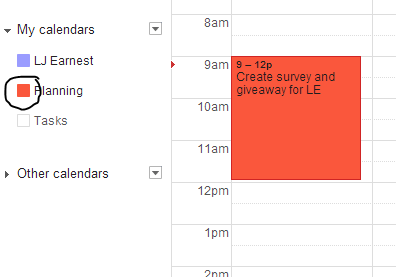
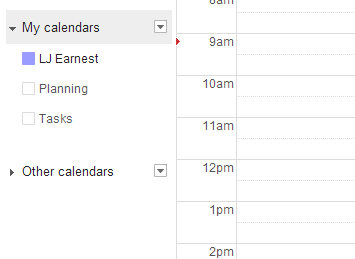
You can tell if a particular calendar is showing by the colored box to the left of the calendar name. If the box is showing, the calendar is showing. If it isn’t, the calendar is hidden.
Sharing The Planning Calendar
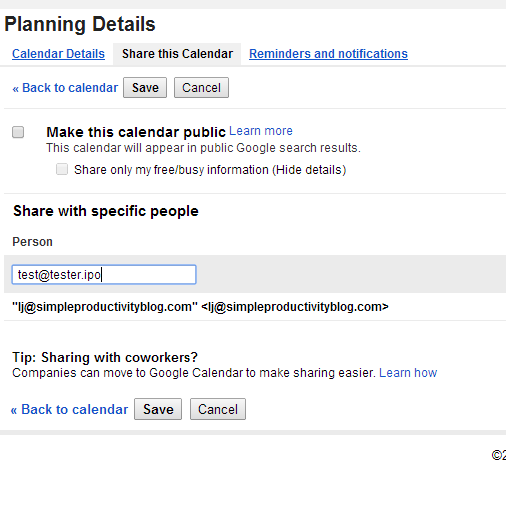
If you need to share the calendar after it has been created, you can click the down arrow to the right of the calendar and choose sharing. You can then add the addresses of the people you want to share the calendar with.
In Summary
Having a separate calendar just for planning means that I can see my goals with my daily events. Setting up Google calendar for planning allows me to quickly show, hide and share as well.
More Google Calendar
If you want to know how to get more out of Google Calendar, check out the article Supercharge Your Google Calendar.